Managing the States/Provinces List in Limo Anywhere
Managing Lists of frequently used data points in the limousine company’s Limo Anywhere creates a customized system that fits the business, and allows for greater efficiency in using Limo Anywhere on a daily basis. This Knowledge Base article covers managing the States/Provinces in Limo Anywhere.
View the States/Provinces List
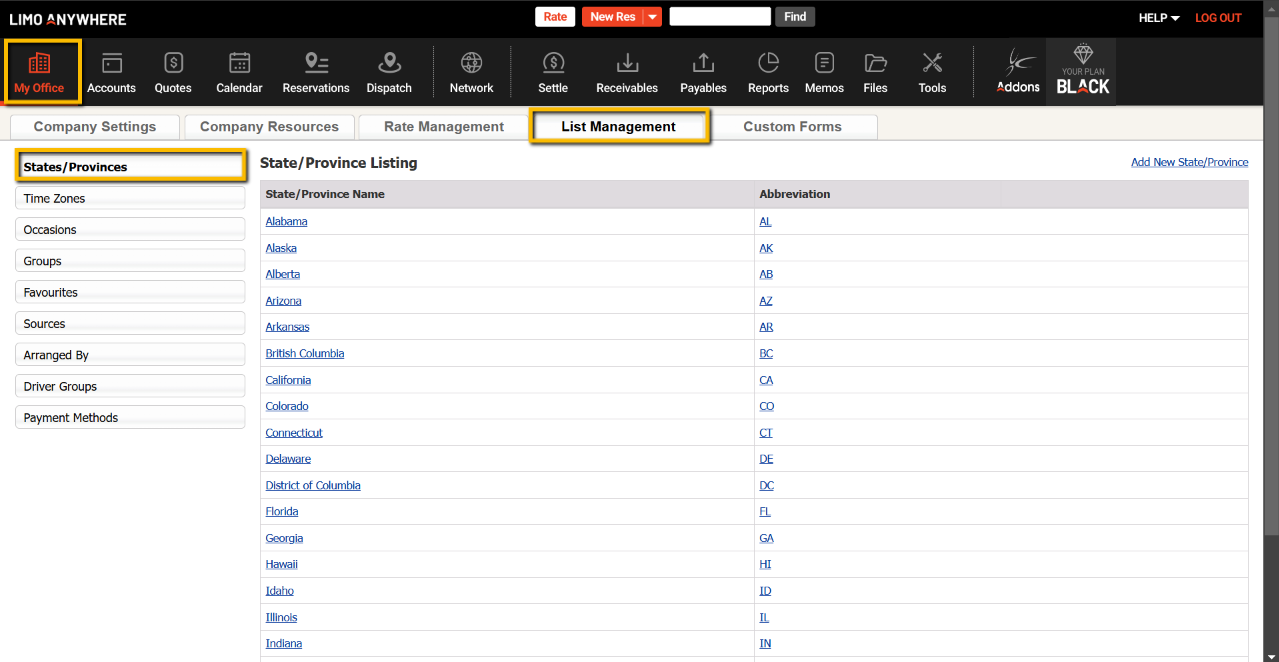
- Click on the ‘My Office’ icon on the toolbar.
- Open the ‘List Management’ tab, and select the States/Provinces button.
- The State/Province Listing will be displayed. Each State/Province in the State/Province Listing is a link in the State/Province.
- Name/Abbreviation column with the name of the State/Province followed by the Two Letter ISO State/Province Code.
Editing or Deleting a State/Province
To Edit a State/Province:
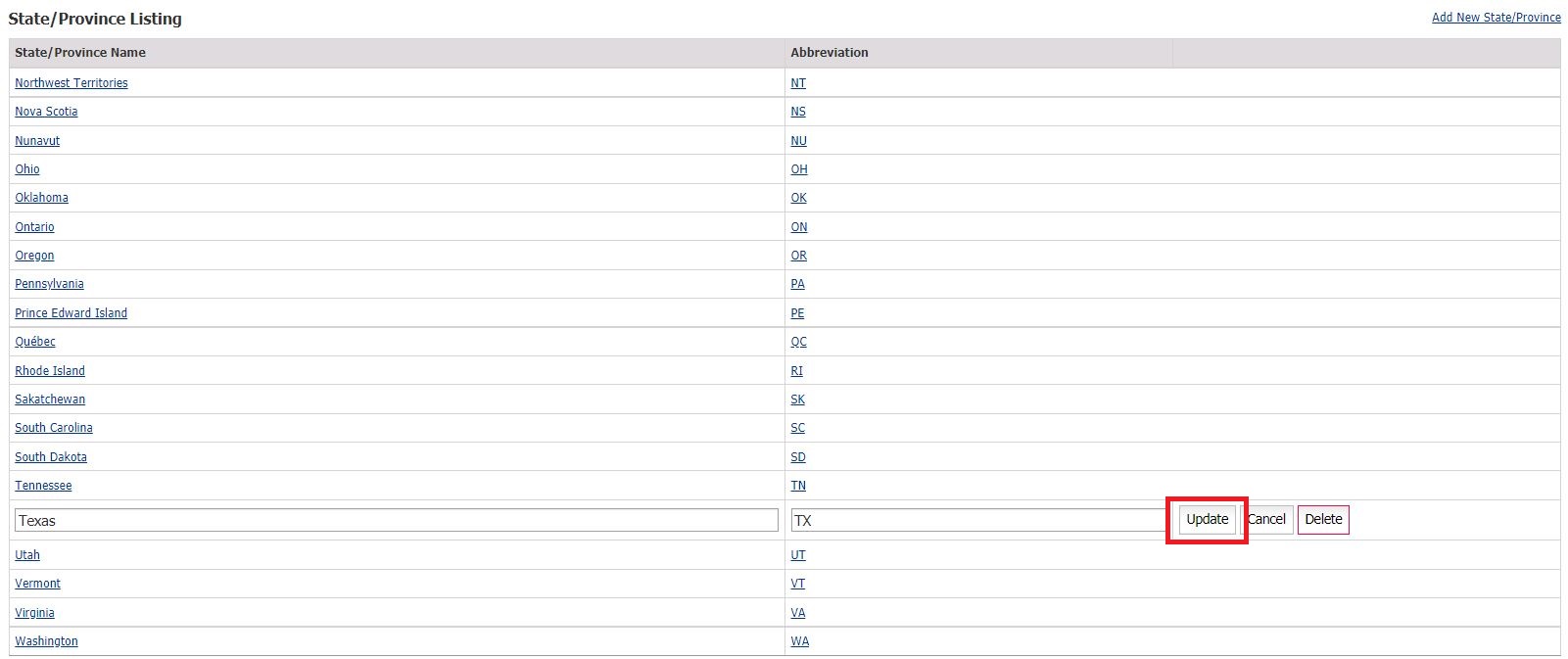
- Click on the ‘State/Province Name‘ or ‘Abbreviation‘ link in the State/Province Listing.
- Change the State/Province Name, and Abbreviation as appropriate.
- Click ‘Update State/Province’ to retain any changes.
To Delete a State/Province:
- Click on the State/Province Name & Abbreviation link in the State/Province Listing.
- Click on ‘Delete’ tab.
- An ‘Are You Sure’ pop up window will appear. Click ‘OK’ to delete the State/Province, and ‘Cancel’ to return to the Edit State/Province page.
Adding a State/Province
- Click the ‘Add New State/Province’ link in the upper right of the State/Province Listing.
- Enter the State/Province Name, and Abbreviation.
- Click ‘Add New State/Province’ to retain the additional State/Province.

Was this article helpful?
That’s Great!
Thank you for your feedback
Sorry! We couldn't be helpful
Thank you for your feedback
Feedback sent
We appreciate your effort and will try to fix the article