Creating a Privacy Policy
The Privacy function in Limo Anywhere allows you to display a Privacy Policy to your customers to assure them the data is safe. Some gateway providers, and some of your corporate customers may require a privacy policy to be displayed on your website.
To create a Privacy Policy:
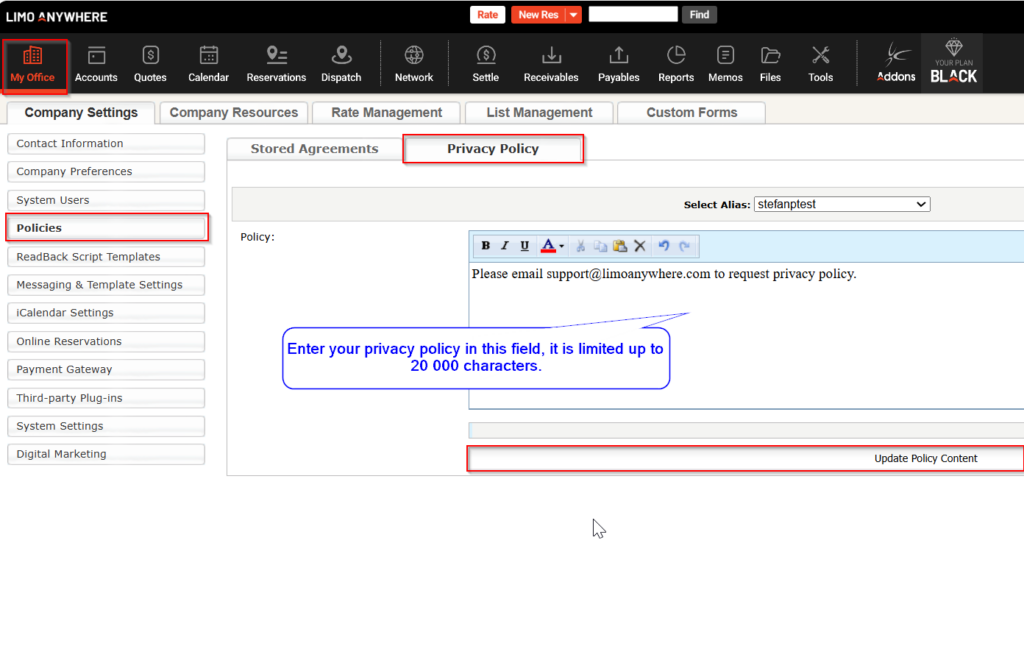
- Go to ‘My Office‘.
- Select the ‘Company Settings‘ tab.
- Click on ‘Policies‘.
- Select the ‘Privacy Policy‘ tab.
- Enter the Policy text.
- Click ‘Update‘ Policy Content to save.
During the reservation making process, Privacy policy can be displayed on three individual positions:
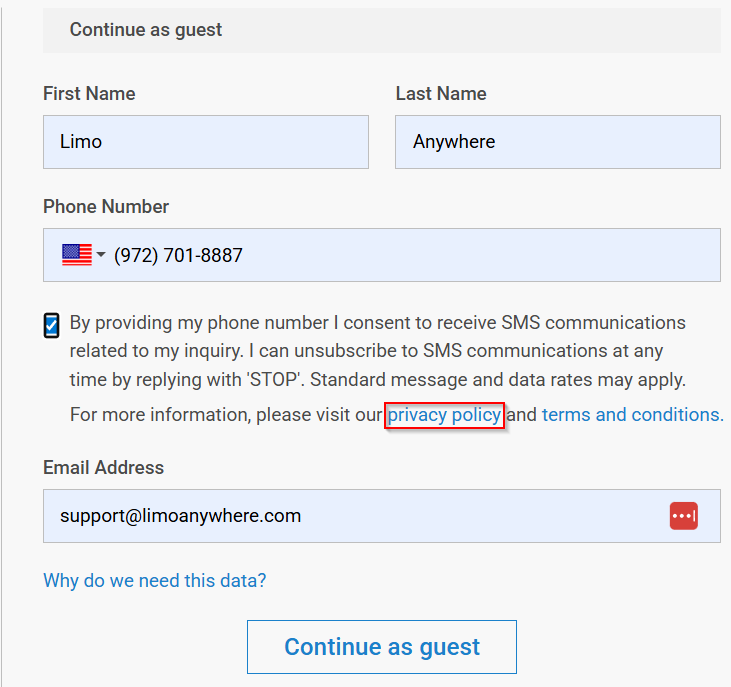
- Bottom of the booking form has a mandatory position for Privacy Policy, it is always displayed by default, and it cannot be disabled.
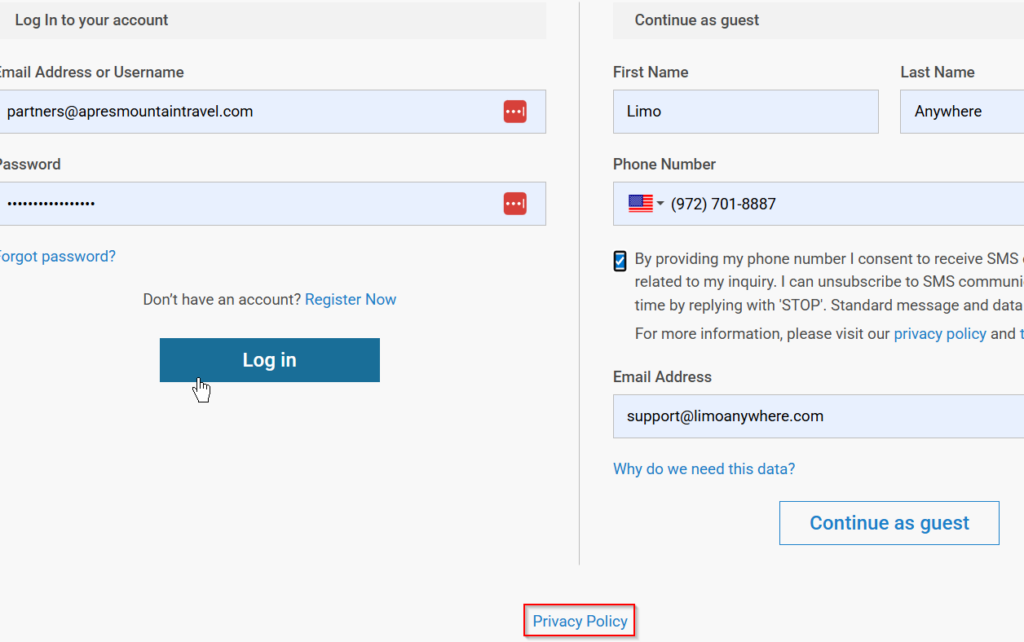
- During the second step of the reservation, when asked for your personal information, the SMS Opt-In option, if enabled, will display the Privacy policy information link as well.
- During the final step of the reservation making process, if you enable the option to Display the Terms and Conditions in a scrollable box:, Privacy policy information link will be visible as well.
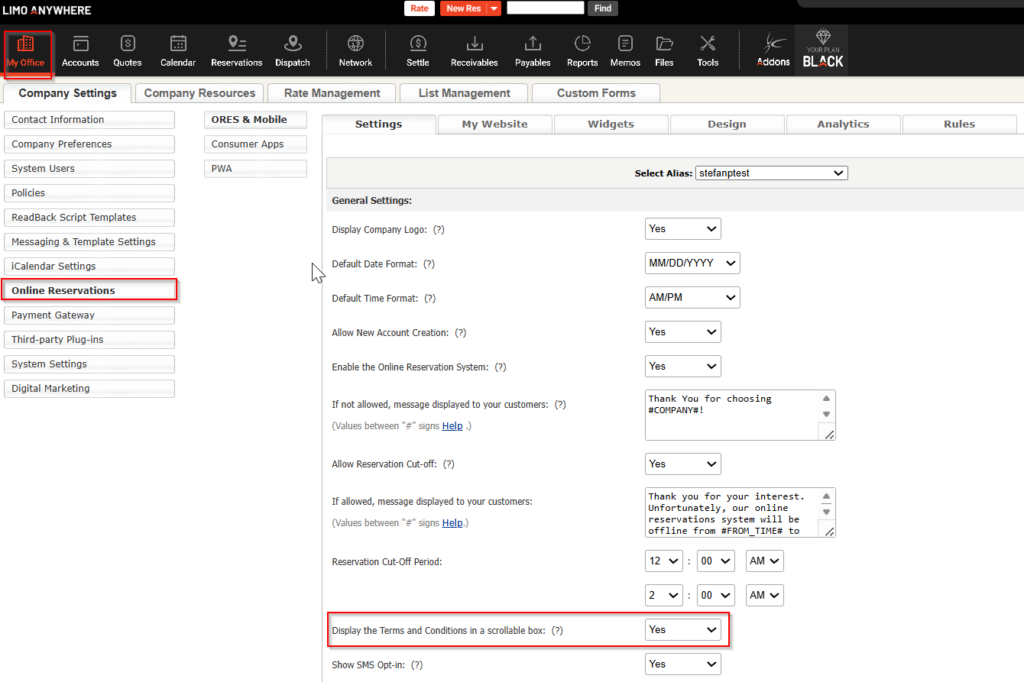
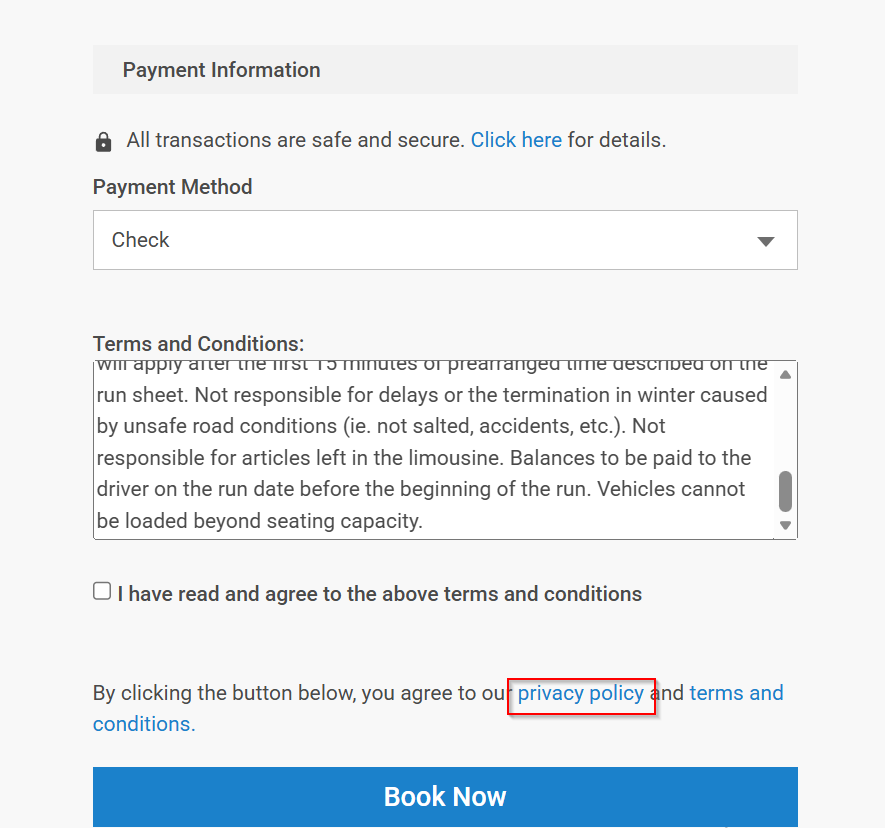
Terms and Conditions and SMS Opt-In Settings:
- How-to Setup SMS Opt-In Option in ORES 4 – Limo Anywhere Knowledge Center
- How To Manage and Create Rental Agreements and Policies – Limo Anywhere Knowledge Center
NOTE: The Privacy Policy is limited to 20,000 characters. If copying and pasting, please DO NOT use Microsoft Word. This can cause issues.
NOTE: If you require assistance writing a privacy policy there are many sources on line. We found one called Free Privacy Policy.com. Limo Anywhere makes no warranties stated or implied by this referral.
Was this article helpful?
That’s Great!
Thank you for your feedback
Sorry! We couldn't be helpful
Thank you for your feedback
Feedback sent
We appreciate your effort and will try to fix the article