When customers book a reservation through your online booking tool (ORES or PWA), Limo Anywhere can automatically handle payment collection so you don’t have to process charges manually. This article explains how deposits and payments work during the online booking process, what your customers experience, and how each payment option affects your business.
Prerequisites
Before deposits and payments can be collected automatically during online bookings, you need to have the following set up:
- A payment gateway connected — You must have an active payment gateway configured in your Limo Anywhere account (such as LimoAnywhere Pay or Stripe).
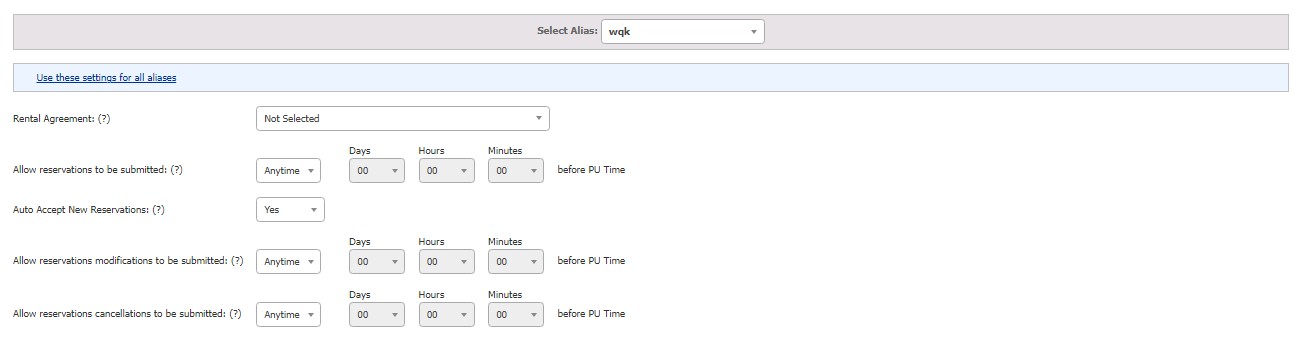
- Auto Accept New Reservations set to Yes — Found under My Office > Company Settings > Online Reservations > ORES & Mobile > Rules.
- Calculate and Display Pricing to Customers enabled — Located in the same section as above. Customers must be able to see pricing in order for payments to be collected.
- Auto Payments enabled — Choose either “Authorization Only” or “Authorize & Capture” under My Office > Company Settings > Online Reservations > ORES & Mobile > Rules. For detailed setup steps, see How-to Setup Auto Payments.
How It Works: What Happens When a Customer Books
When a customer completes a reservation through your online booking tool, here’s what happens behind the scenes:
- The customer selects their service type, date, time, and locations.
- The system calculates the trip total and displays the price.
- The customer enters their credit card information.
- The customer submits the reservation.
- The reservation is automatically accepted (if Auto Accept is enabled).
- The system automatically processes a payment or hold on the customer’s credit card based on your Auto Payment setting.
The customer sees their confirmation with the total amount. There is no separate “deposit” step — the payment is processed automatically as part of the booking confirmation.
Payment Options Explained
You have three options for how payments are handled during online bookings. Each works differently and is suited to different business needs.
Option 1: Authorization Only (Hold Funds)
What it does: Places a temporary hold on the customer’s credit card for the trip amount. No money is actually transferred to your account yet.
How it works:
- When the customer books, their card is authorized for the trip total (or the trip total plus an optional buffer — see Incremental Authorization below).
- The hold is temporary — it typically lasts 7 to 30 days depending on the card issuer.
- You capture (collect) the actual payment later, usually after the trip is completed.
- If the final trip cost changes (due to wait time, tolls, route changes, etc.), you can capture a different amount up to the authorized total.
Best for: Companies that frequently have fare adjustments after the trip, or that prefer to charge the final amount only after service is completed.
What the customer sees: A pending charge or hold on their credit card statement. The hold will either convert to a charge when you capture it or drop off their statement if you void it.
Option 2: Authorize and Capture (Charge Immediately)
What it does: Charges the customer’s credit card for the full trip amount immediately when the booking is confirmed.
How it works:
- When the customer books, their card is charged right away for the total trip cost.
- The funds are transferred to your merchant account.
- No further action is needed to collect payment for this reservation.
Best for: Companies that want immediate payment, have fixed pricing, or prefer a simpler payment workflow.
What the customer sees: A completed charge on their credit card statement for the full trip amount.
Option 3: No Auto Payment (Manual Processing)
What it does: No payment is collected at the time of booking. The customer’s credit card is stored securely on file, and you process the payment manually at a later time.
How it works:
- The customer enters their card information during booking, but no charge or hold is placed.
- You process the payment from within the reservation when you’re ready.
Best for: Companies that need to verify pricing, apply custom rates, or handle payment on a case-by-case basis.
Incremental Authorization (Buffer Amount)
If you use the Authorization Only option, you can set up an incremental authorization to hold a slightly higher amount than the quoted trip total. This gives you a buffer for fare adjustments.
Example: If a trip is quoted at $100 and you set your incremental authorization to 20%, the customer’s card will be authorized for $120. This way, if the trip ends up costing $115 due to extra wait time or tolls, you can still capture the full amount without needing to re-authorize the card.
To configure this, go to My Office > Company Settings > Online Reservations > ORES & Mobile > Rules and set the incremental authorization percentage.
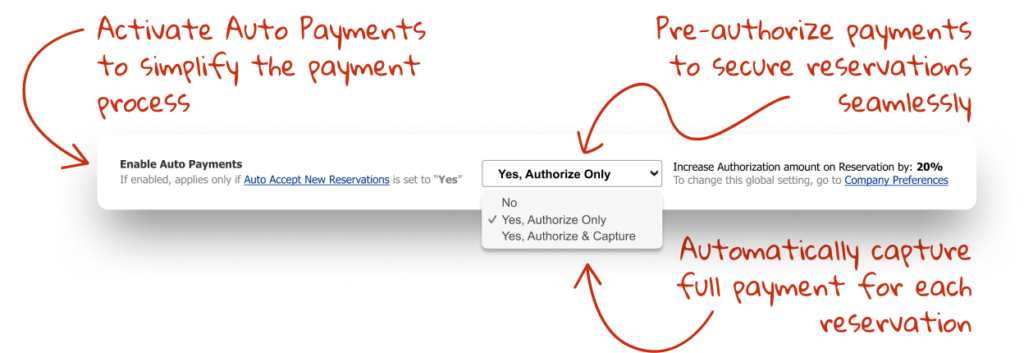
Note: Incremental authorization is supported with LimoAnywhere Pay and Stripe gateways.
What Happens If Pricing Can’t Be Calculated
If the system is unable to calculate a price for the trip (for example, if no rate is configured for that service type or route), the auto payment will be skipped. The reservation will still be created, but no charge or hold will be placed. You will need to process the payment manually once you’ve confirmed the pricing.
What Happens When a Trip Is Cancelled
- If Authorization Only was used: The hold on the customer’s card can be voided, releasing the funds back to the customer immediately. If the hold is not voided, it will automatically expire after the hold period (7–30 days).
- If Authorize & Capture was used: Since the charge has already been processed, you would need to issue a refund to return funds to the customer. You can process refunds from within the reservation.
Tips and Best Practices
- Use Authorization Only if your fares frequently change — This gives you flexibility to charge the correct final amount without needing to issue partial refunds.
- Use Authorize & Capture for fixed-rate services — Airport transfers and hourly services with set pricing are great candidates for immediate capture.
- Set a reasonable incremental authorization — A 10–20% buffer is usually sufficient. Setting it too high may cause the customer’s card to decline if they don’t have enough available credit.
- Review held authorizations regularly — Authorizations expire after 7–30 days. Make sure to capture payments before the hold expires, or you’ll need to process a new charge.
- Communicate your payment policy to customers — Consider adding a note to your booking confirmation page or email letting customers know whether they were charged immediately or if a hold was placed.
Troubleshooting
The customer’s card was declined during booking
The customer may not have sufficient funds or credit available. The reservation may still be created (depending on your settings), but no payment will be collected. Contact the customer to arrange an alternative payment method.
The authorization hold expired before I captured the payment
You will need to process a new charge on the customer’s card. Open the reservation and manually process a payment. The original hold will have already dropped off the customer’s statement.
Auto payment didn’t process even though it’s enabled
Check that all prerequisites are met: Auto Accept must be on, pricing must be displayed to customers, and a valid payment gateway must be configured. Also verify that the trip had a calculable rate — if no rate was found, auto payment is skipped.
The customer was charged a different amount than expected
If you’re using Authorization Only with incremental authorization, the hold amount will be higher than the quoted price. Let the customer know this is a temporary hold and that the final charge will reflect the actual trip cost.
Related Articles
- How-to Setup Auto Payments — Step-by-step guide for enabling and configuring auto payment settings
- Common Terms in Payment/Transaction Processing — Glossary of payment terminology
- How-to Reverse a Payment on a Reservation — Guide for processing voids and refunds
Was this article helpful?
That’s Great!
Thank you for your feedback
Sorry! We couldn't be helpful
Thank you for your feedback
Feedback sent
We appreciate your effort and will try to fix the article